
Media Binder
Media Binder allows users to link images or videos to a token, enhancing visual storytelling and immersion. The module adds a dedicated menu in the left sidebar where users can select a token and manage its associated media.
Enabling the Module
Section titled “Enabling the Module”First, make sure the module is enabled:

Accessing the Tool
Section titled “Accessing the Tool”Select the token you want to link media to. Then, go to:
Token Controls -> Link Media to open the configuration panel:
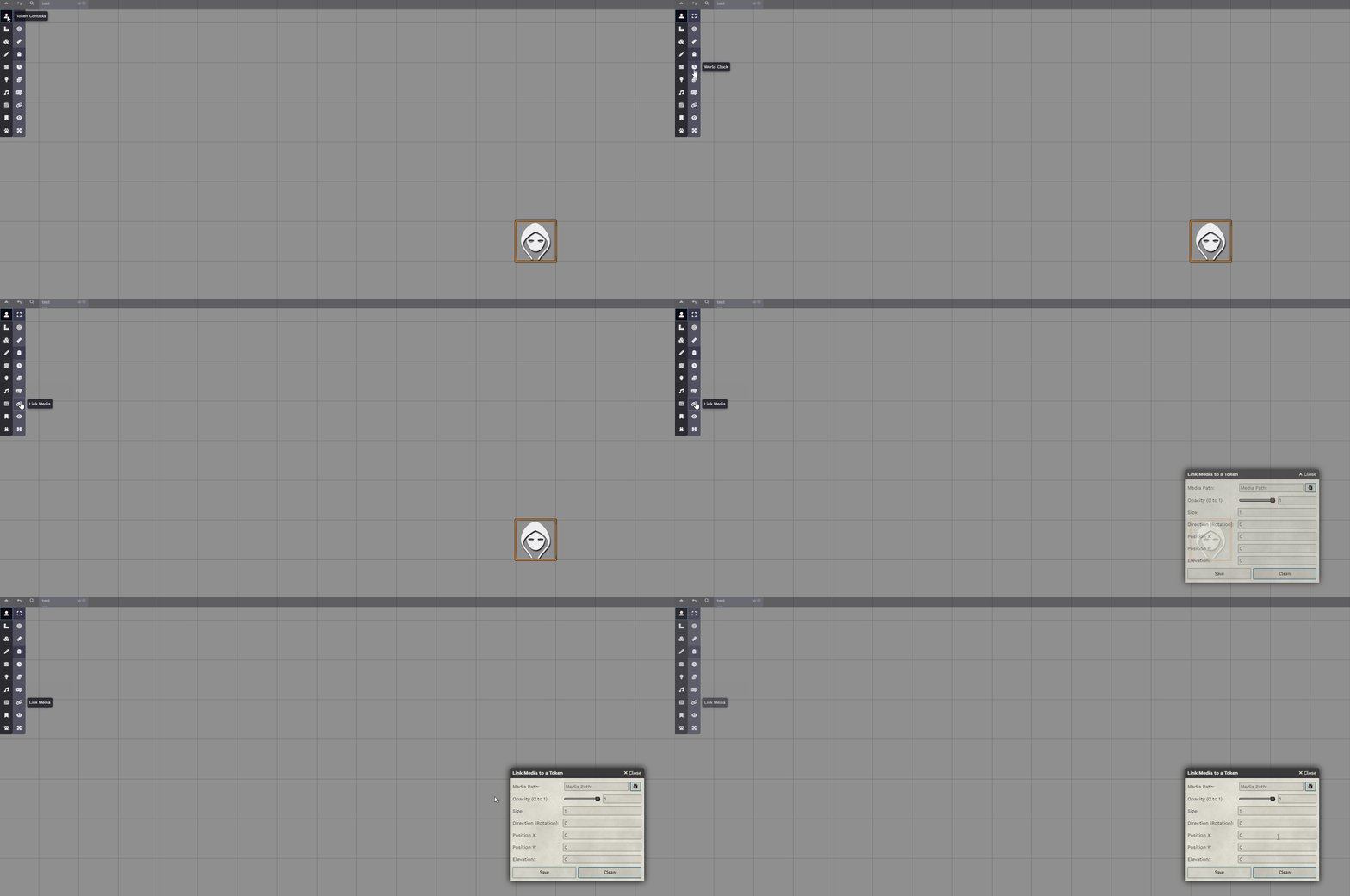
Choosing the Media
Section titled “Choosing the Media”Select the image or video you want to bind to the token:
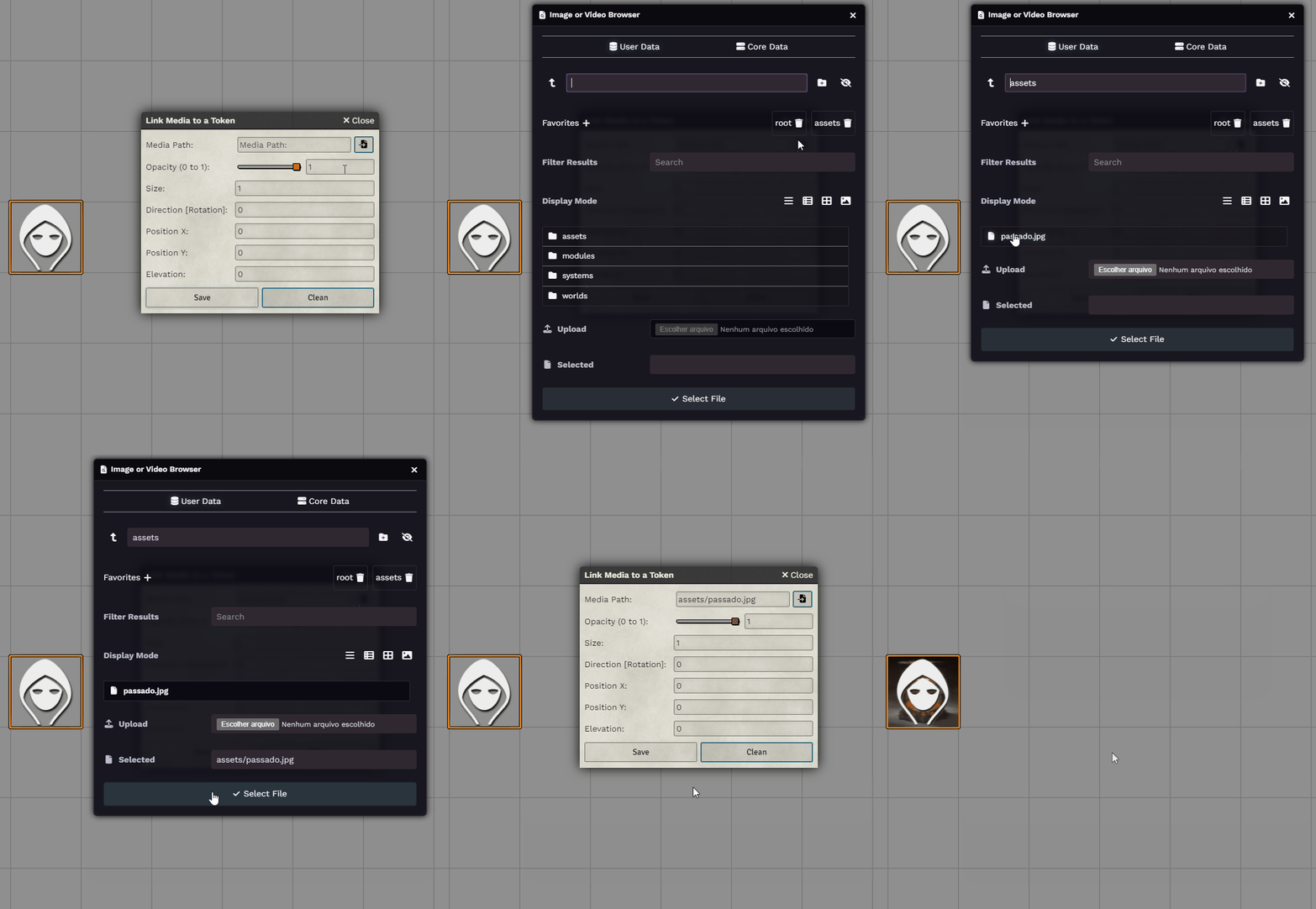
Display Options
Section titled “Display Options”You can change how the media is presented:
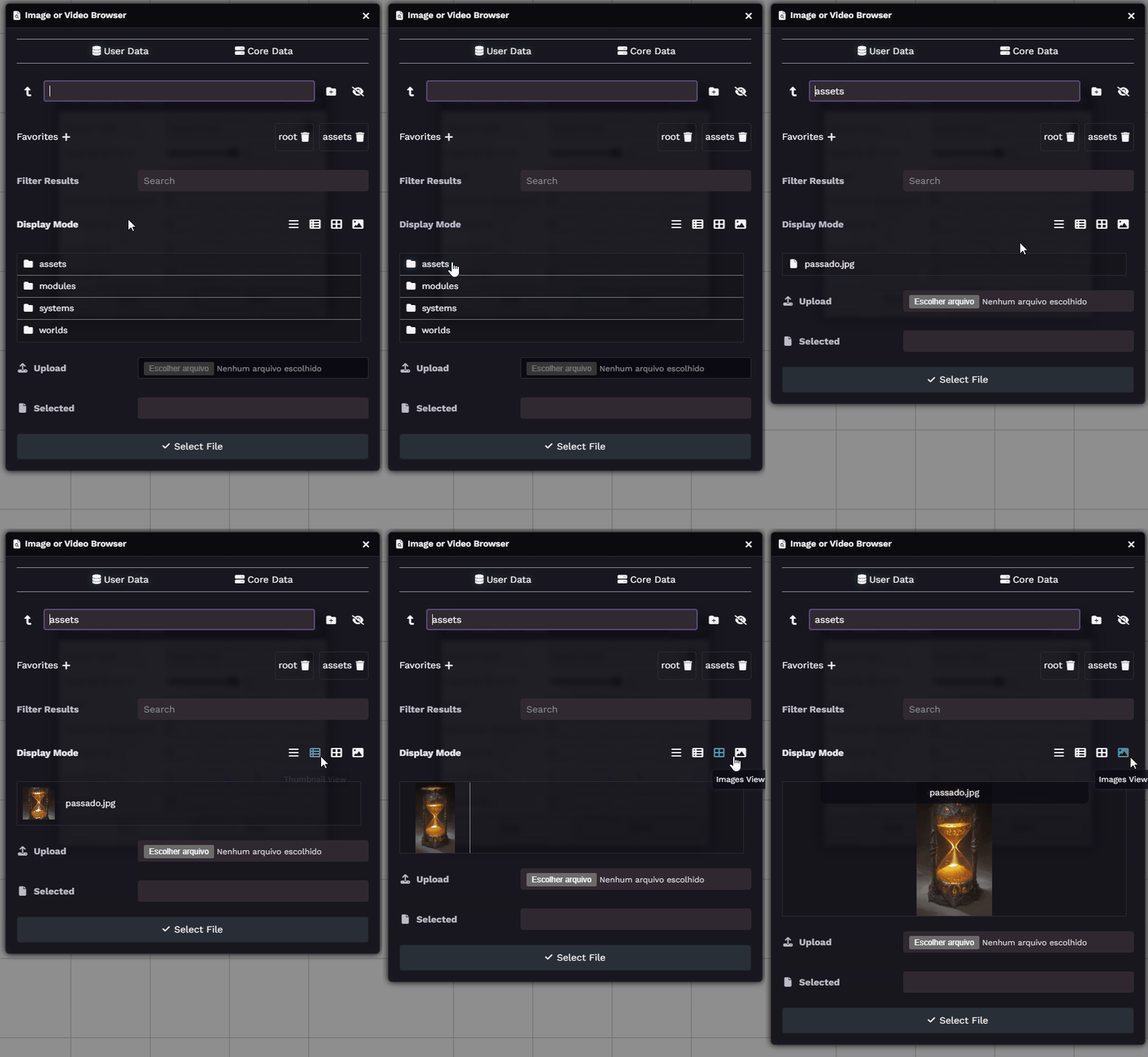
Configuration Options
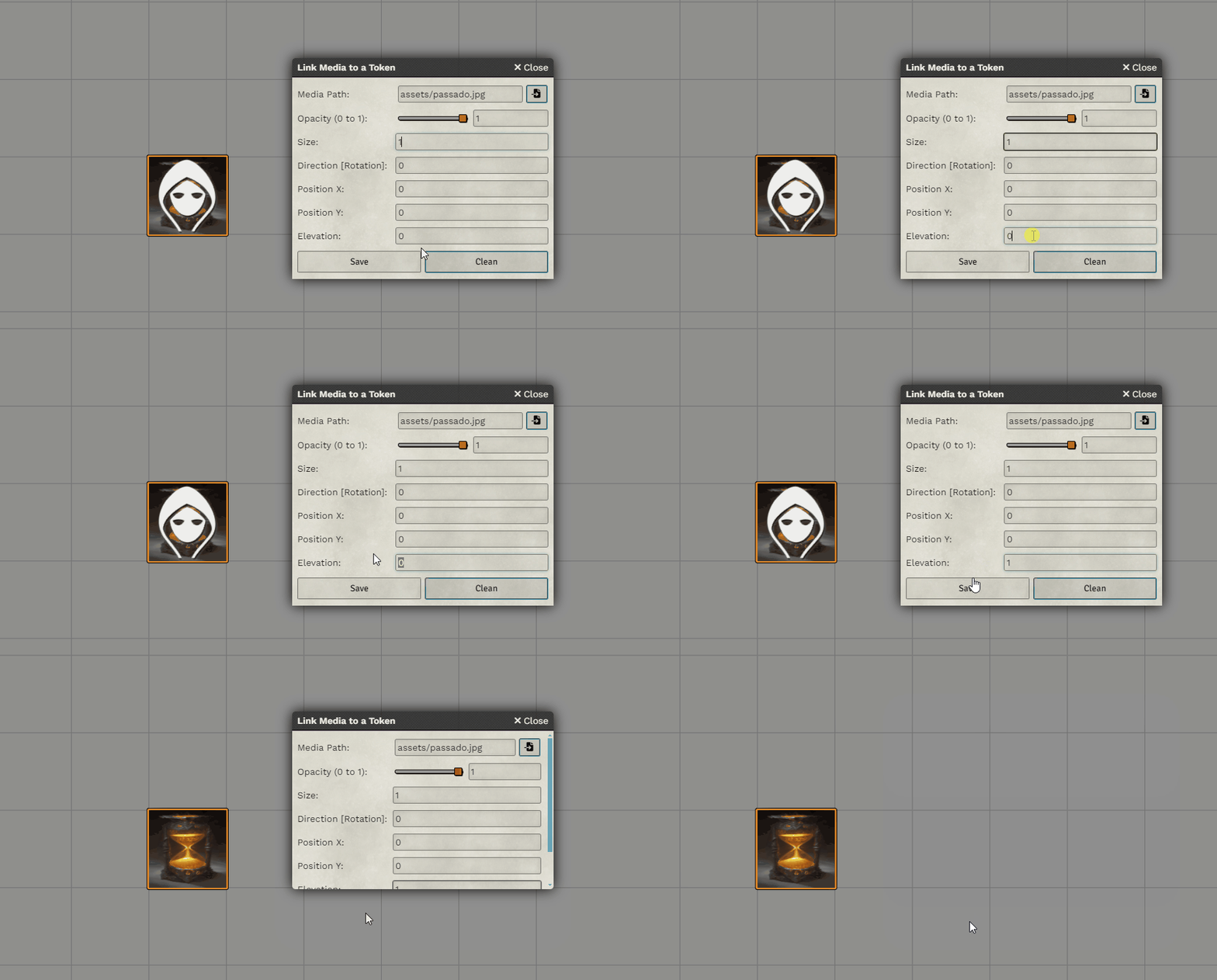
Section titled “Configuration Options”Customize the appearance and positioning of the media using the following settings:
Opacity
Section titled “Opacity”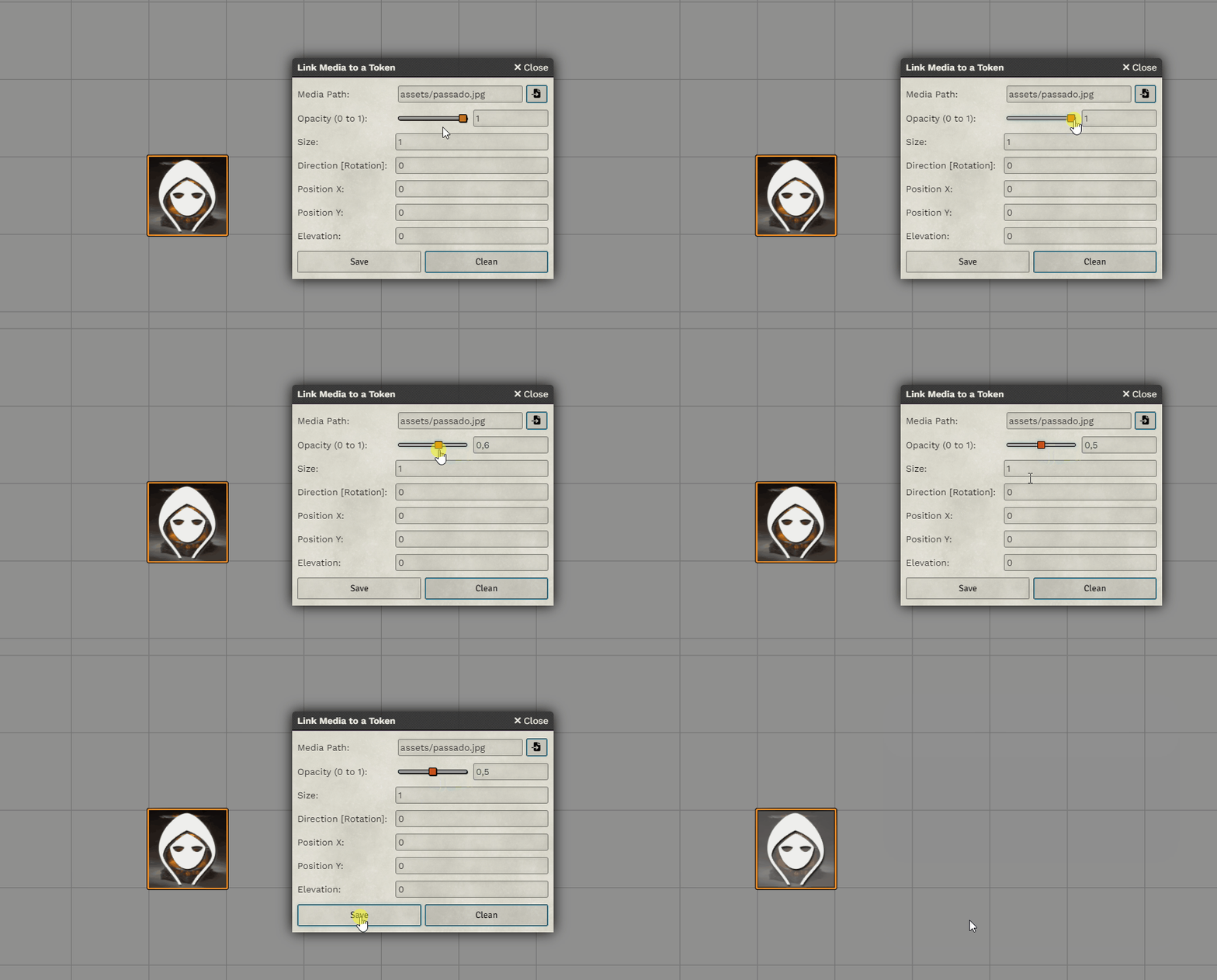
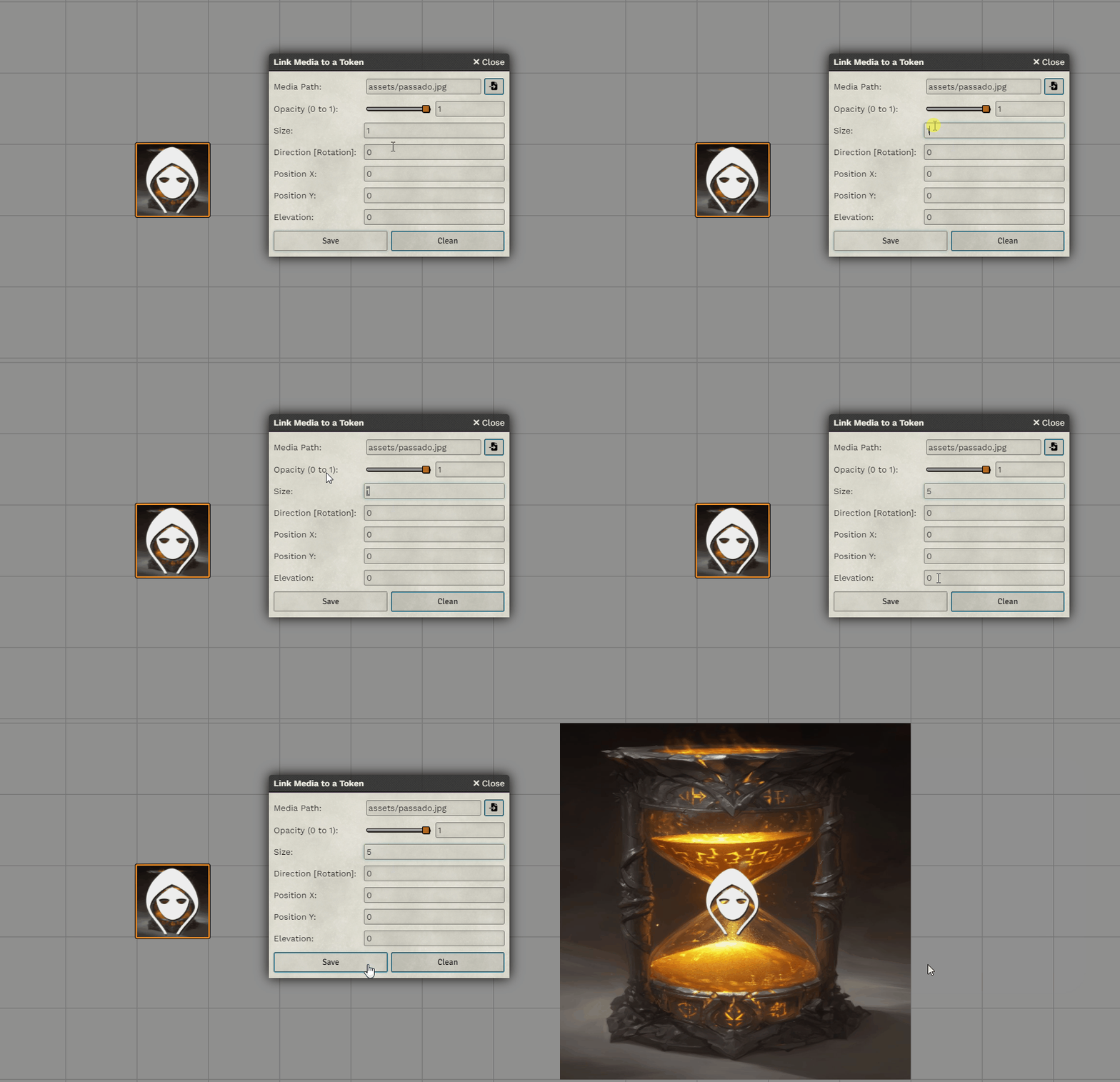
Direction/Rotation
Section titled “Direction/Rotation”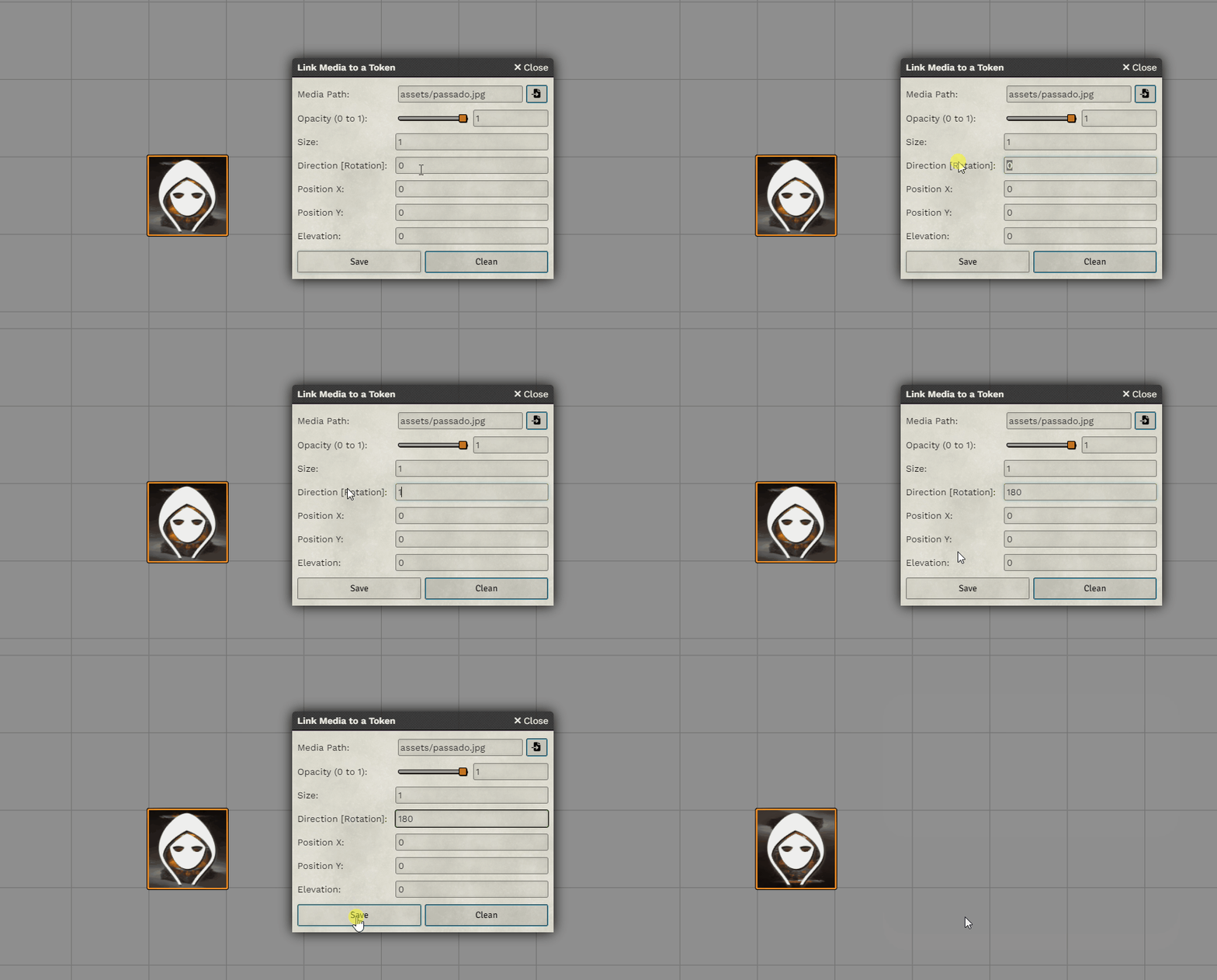
Position (X and Y)
Section titled “Position (X and Y)”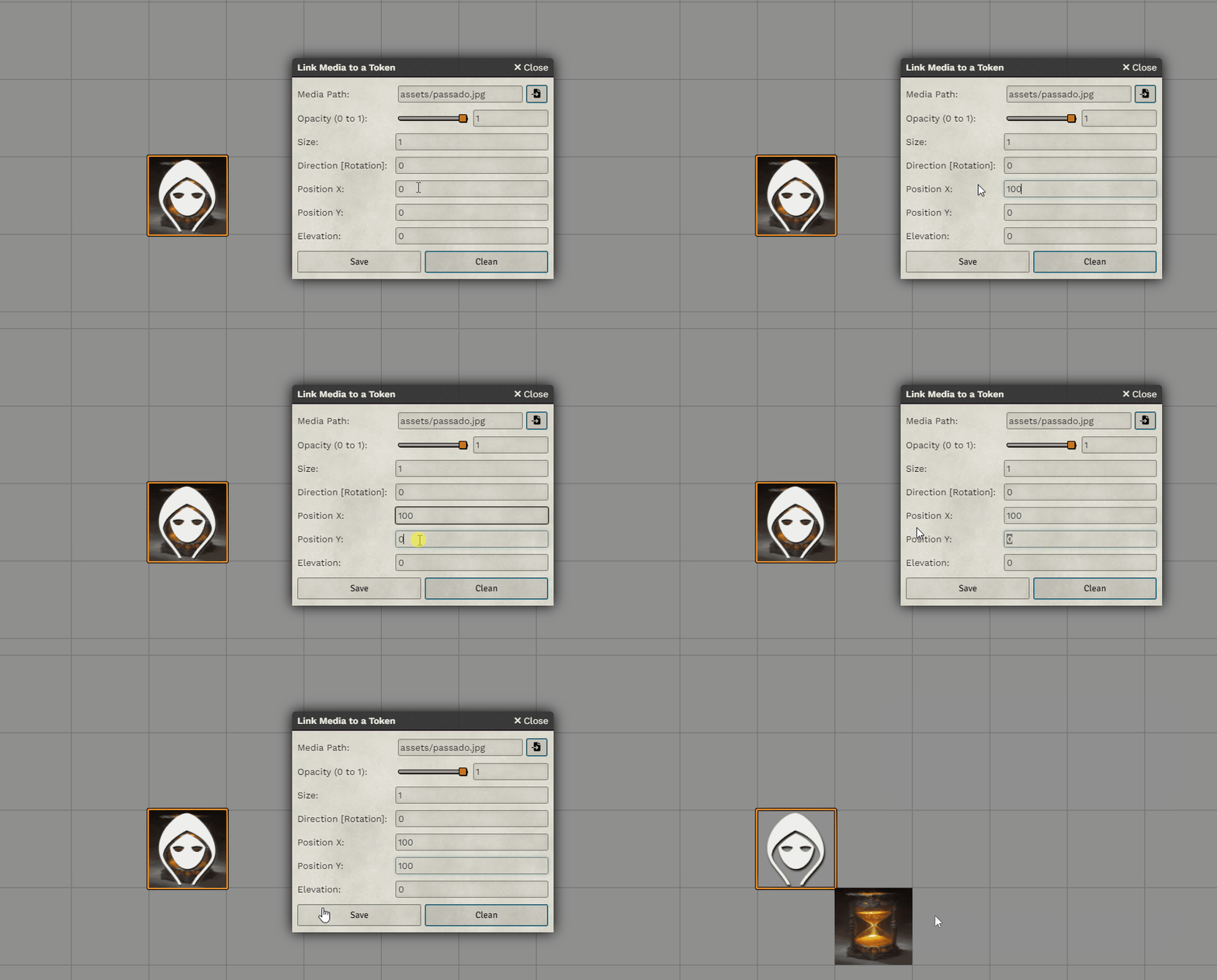
Elevation
Section titled “Elevation”Define whether the media appears above or below the main token:
Further Reading
Section titled “Further Reading”- Visit the Media Binder module page to learn more.